
What
Visible to account managers, the Structure tab in User Management shows how your organisation fits together. It displays accounts at the top, with clusters, communities, and departments neatly arranged underneath. This helps you see exactly where people, devices, and settings belong.
Why
Knowing how your account is structured helps you work smarter. The account sits at the highest level, representing your entire organisation, with subsequent clusters, communities, and departments below. Understanding this hierarchy makes it easy to find the right place to add users or devices, manage who has access to what, group related communities into clusters for simpler reporting and keep your structure clear and consistent
Getting the most out of your account hierarchy
To view your account’s hierarchy, click the gear in upper right hand corner of the application, and navigate to Structure in the left menu.
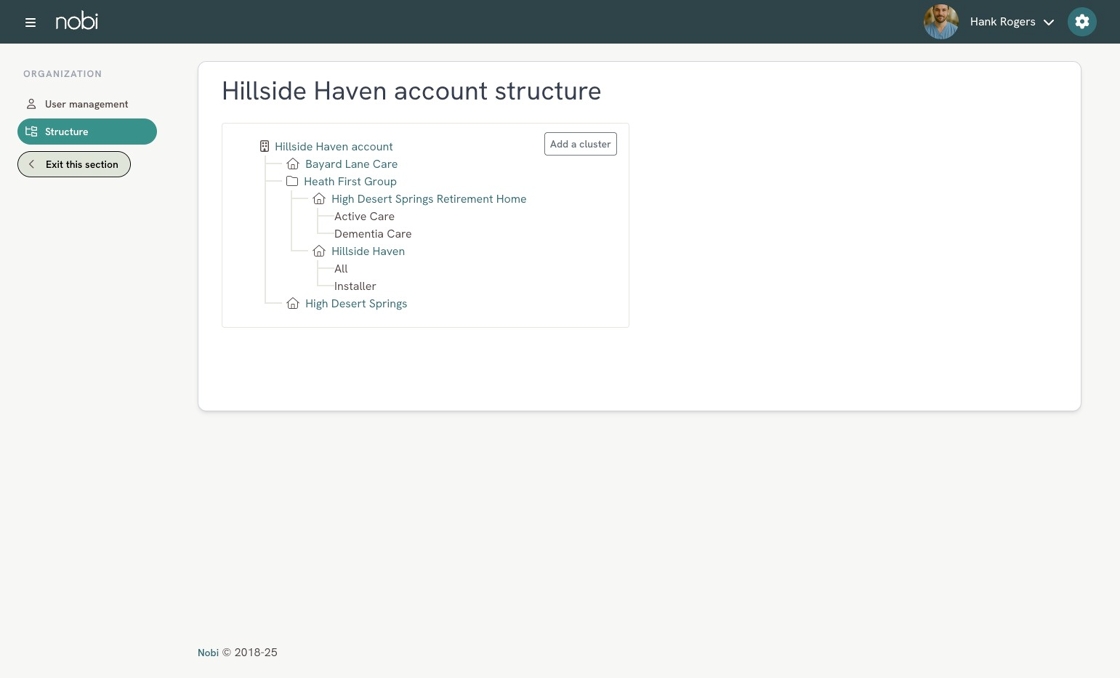
The structure runs from biggest to smallest: account, cluster, community, department, housing unit, room.
To manage large organisations, you can group communities under the account into clusters, like “Heath First Group.” Clusters reflect how communities are connected operationally—for example, all communities belonging to one care group.
Communities are specific care homes or facilities, such as “Bayard Lane Care” or “High Desert Springs Retirement Home.” A community can belong to a cluster, or sit directly under the account without a cluster.
Within each community, you have departments such as “Active Care” or “Dementia Care.” Departments help you keep activities organised and manage user permissions for different teams. Each department holds housing units, and each housing unit has one or more rooms.
To get the most out of your account hierarchy, follow the tips below:
- Use clusters if you have several communities under one group, making it easier to manage them together. Find more information on creating clusters here.
- Keep departments focused and specific, like “Dementia Care,” to ensure precise access and reporting.
- Learn more about user roles in the Nobi application here and assigning user roles here.