
What
Nobi monitoring events are special alerts for key activities of residents. There are five monitoring events: Resident sitting on the edge of the bed, resident out of bed, resident in bed, resident out of room, or resident in bathroom.
Please note, the resident in bathroom monitoring event only works on a light in a room set as Bathroom or Toilet. The in bed, out of bed and sitting on the edge of the bed monitoring events only work on a light in a room set as Bedroom. The out of room monitoring event only functions if the entire housing unit is covered by Nobi or Nobita lights.
Why
For some residents, certain activities are more dangerous than others. Therefore, you may want to monitor and/or be alerted of these events for residents’ safety. Monitoring events allow you to customise the appropriate action taken for certain activities of certain residents.
Setting up a monitoring event
There are several ways to customise the monitoring events:
Monitoring event: Choose which monitoring event you want Nobi to monitor. Not every monitoring event is possible in every housing unit type:
- In single person housing units, all five monitoring events are possible.
- In a Jack & Jill housing unit, In Bed, Out of Bed and Sitting on the Edge of the Bed are only possible in a private zone. In Bathroom is possible in every zone, on a light in a room set as Bathroom or Toilet.
- In multi-person housing units with one double bed, only In Bathroom is possible. Set it on the community or department level. A monitoring event set on the resident level is not used.
- In multi-person housing units with two single beds, In Bed, Out of Bed, Sitting on the Edge of the Bed and In Bathroom are possible. The bed-related monitoring events work per resident, once the beds are identified. Out of Room is not possible.
- In common areas, monitoring events are not possible.
Time/Day: Select which days and time frames the monitoring will be active.
Thresholds: Choose when to receive the alert if Nobi sees the monitoring event. You can set the threshold to immediate or after a certain time has passed.
Actions: Decide which steps Nobi takes when these conditions occur. Options include Dashboard and Mobile Notifications.
-
Only log in report
- No alert is sent, instead the monitoring events are logged and can be found in the overview of monitoring events.
-
Show on dashboard
- Show on dashboard: Sends a visual alert to the dashboard, along with an audible alert if sound on the dashboard is enabled.
-
Mobile Notification
- Notification: A standard push notification is sent to the users who receive mobile notifications (see below) and have enabled notifications. The notification briefly describes the event so they can open the app and check the details. When this option is selected, the monitoring event will also show on the dashboard and be logged in the report.
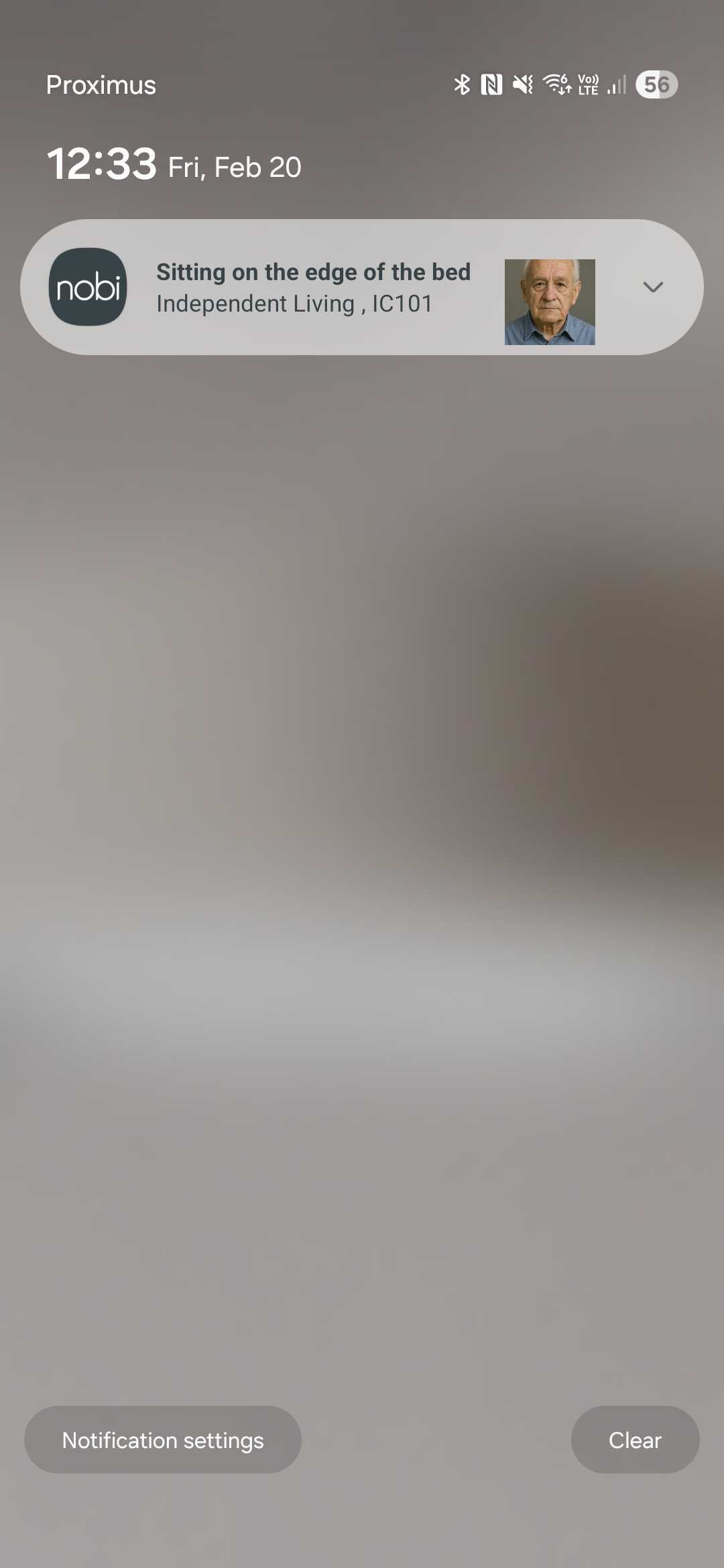
When the notification is pressed, and pulled down, more information regarding the monitoring event will be displayed: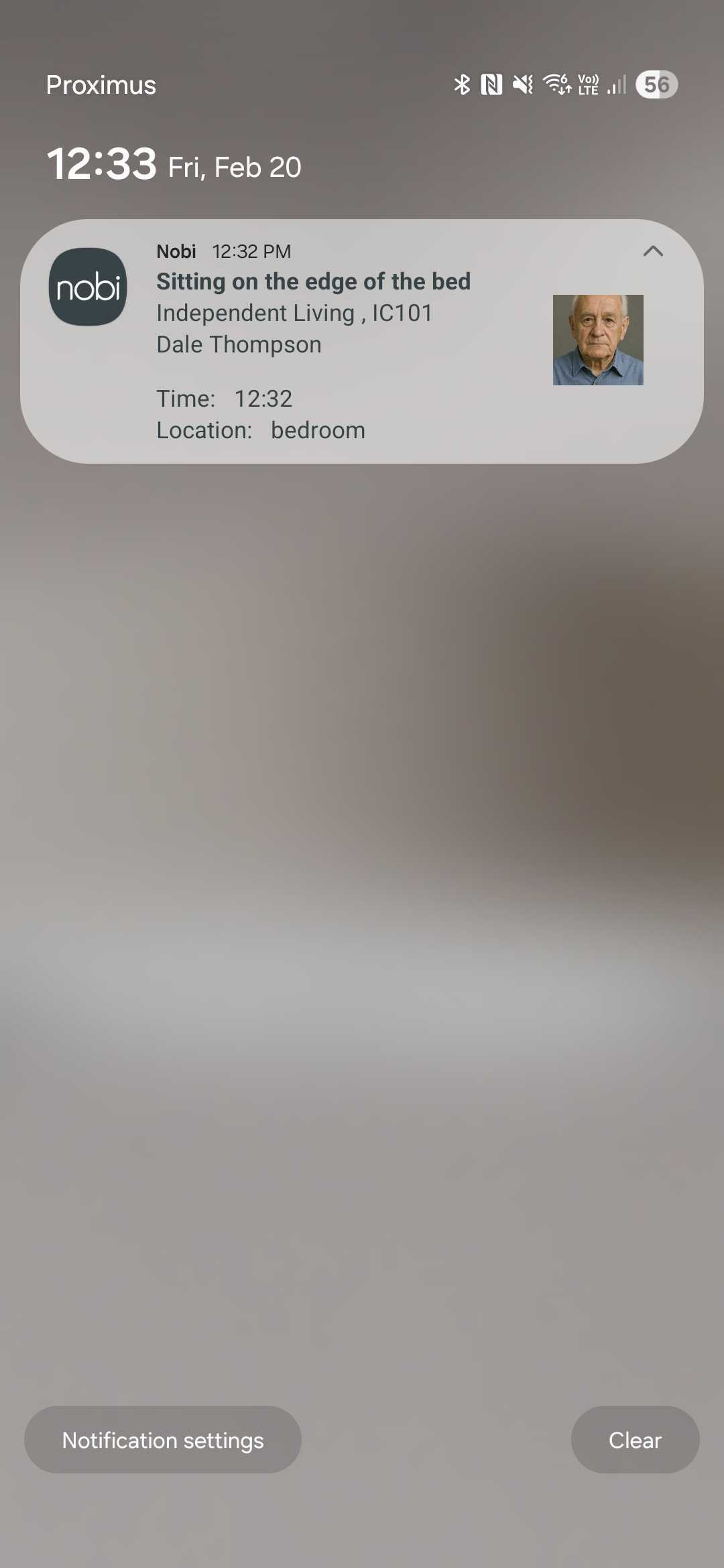
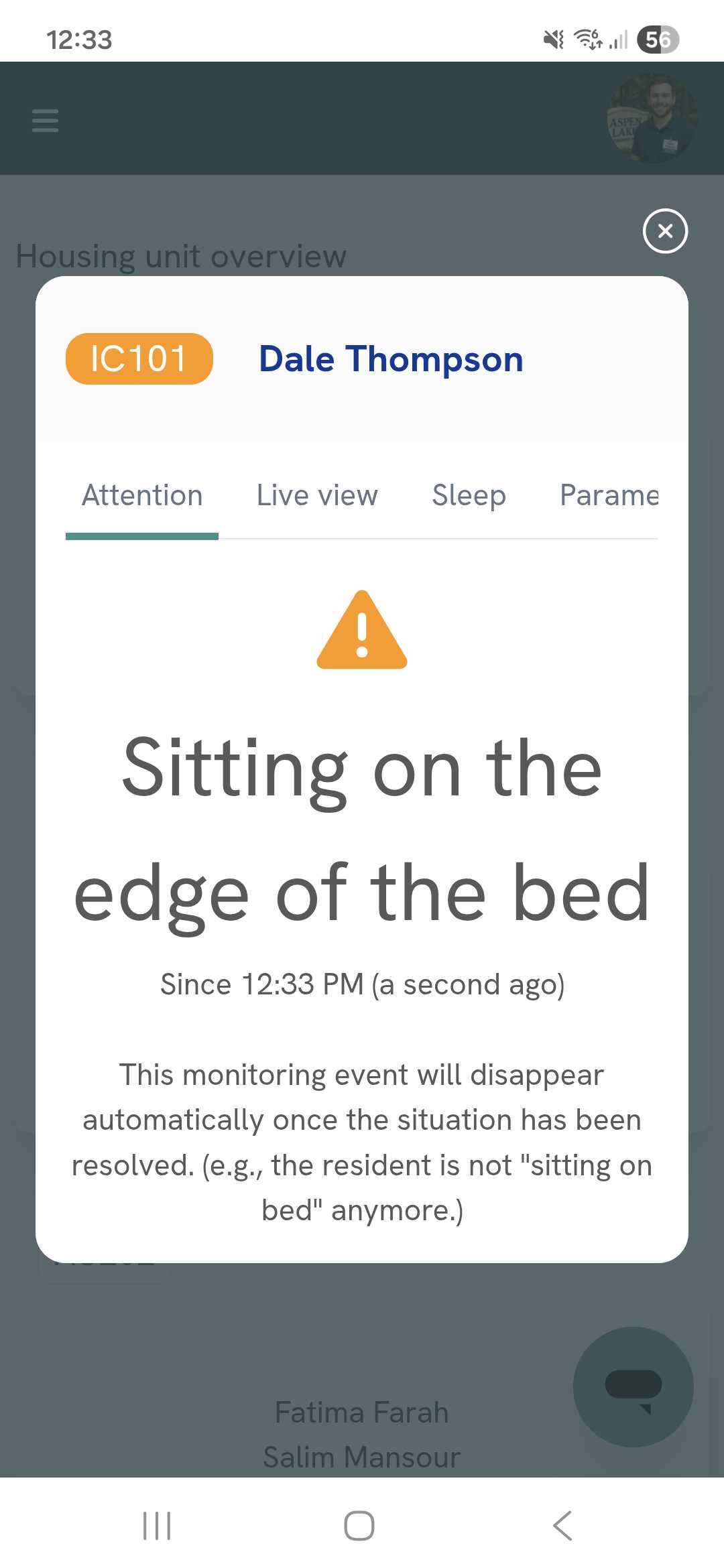
- Pop-up with sound in app: A full-screen visual and audible alert with details of the event pops up on the mobile device of the users who receive mobile notifications. This makes sure the event is noticed immediately. If a user has already accepted an ongoing escalation, or has requested assistance, they receive a standard notification instead. (The pop-up is currently only available on Android mobile devices. On other devices, users receive a standard notification.) When this option is selected, the monitoring event will also show on the dashboard and be logged in the report.
- Notification: A standard push notification is sent to the users who receive mobile notifications (see below) and have enabled notifications. The notification briefly describes the event so they can open the app and check the details. When this option is selected, the monitoring event will also show on the dashboard and be logged in the report.
Who receives mobile notifications?
- If the department’s escalation procedure uses Escalations via Nobi Mobile App, the users who are signed in to the Nobi Mobile App with this department in their working area receive the notification.
- If no user is signed in with this department in their working area, or the escalation procedure does not use the Nobi Mobile App, all users with access to this department who are signed in to the Nobi Mobile App receive the notification.
Regardless of the chosen action, or if no action is selected, the event monitoring data will always accumulate in the Overview of Monitoring Events.
You can also have an overview of a resident’s set monitoring events via the Resident Insights.
Detailed Steps
Monitoring events can be configured on the community, department, or resident level. Configurations defined on the community level apply to all residents, whereas those defined on the department level only apply for the residents in that department. Monitoring events defined on a resident level only apply to that specific resident.
Setting up a monitoring event follows the same steps, no matter which level you choose.
-
Go to Community in the left menu
-
Go to the Monitoring configurations tab.
-
Click on +Add.
-
A wizard will launch to guide you through four steps:
- Select the monitoring event you want Nobi to monitor. Click Next.
- Select the day(s) and time range when Nobi will monitor this event. Click Next.
- Choose a threshold - How long does the situation need to last before Nobi executes the action(s)? Click Next.
- Choose the action Nobi should take - If no option is selected, events will still be added to the monitoring overview. When notifications or a pop-up alert is selected, the monitoring events will also show on the dashboard.
-
When you’re done, click on save.
-
You have now configured a monitoring event. The monitoring event will appear under the Monitoring configurations tab.
You have now set a monitoring event.